




SoftForge Checklists with a new look — board view, template wizard and more personalisation
Leuk-Stadt, 31 August 2026 – SoftForge AG is delighted to present the comprehensive redesign of Checklists. Our app for recurring processes such as onboarding and offboarding, audits or project kick-offs not only gets a modern look, but also a whole range of new features — still running directly in Microsoft Teams and SharePoint.
What’s new?
The redesign touches practically every area of the app — from the overview to template creation. The key new features at a glance:
- A modern interface with three views for checklists: table, cards and board (Kanban)
- Clickable stat tiles (All, Active, Overdue, Assigned to me) as quick filters
- A reworked detail view with progress ring, sequential tasks and drag & drop
- A new template wizard including Smart Paste for bulk importing tasks
- Freely definable metadata fields to easily identify your checklists
- Personal settings for each user: accent colour, density and preferred views
Three views: table, cards and board
Whether an overview table, visual cards with a progress ring or a Kanban board grouped by status — you choose the view that suits your team. Stat tiles at the top of the list serve as both key figures and filters: one click on “Overdue” instantly shows only the critical checklists.
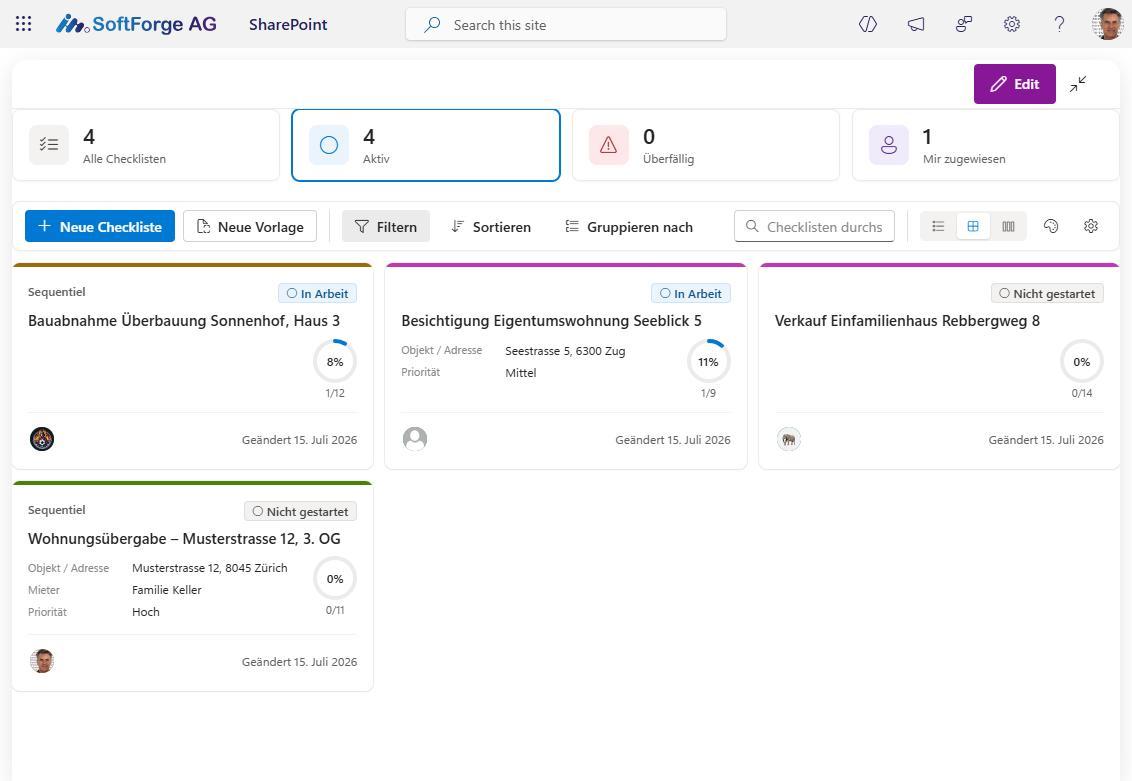
Card view with stat tiles and sample checklists from property management
The board view is particularly well suited to the daily stand-up: checklists are automatically sorted by progress into columns such as “Not started”, “In progress”, “Overdue” and “Almost done”.
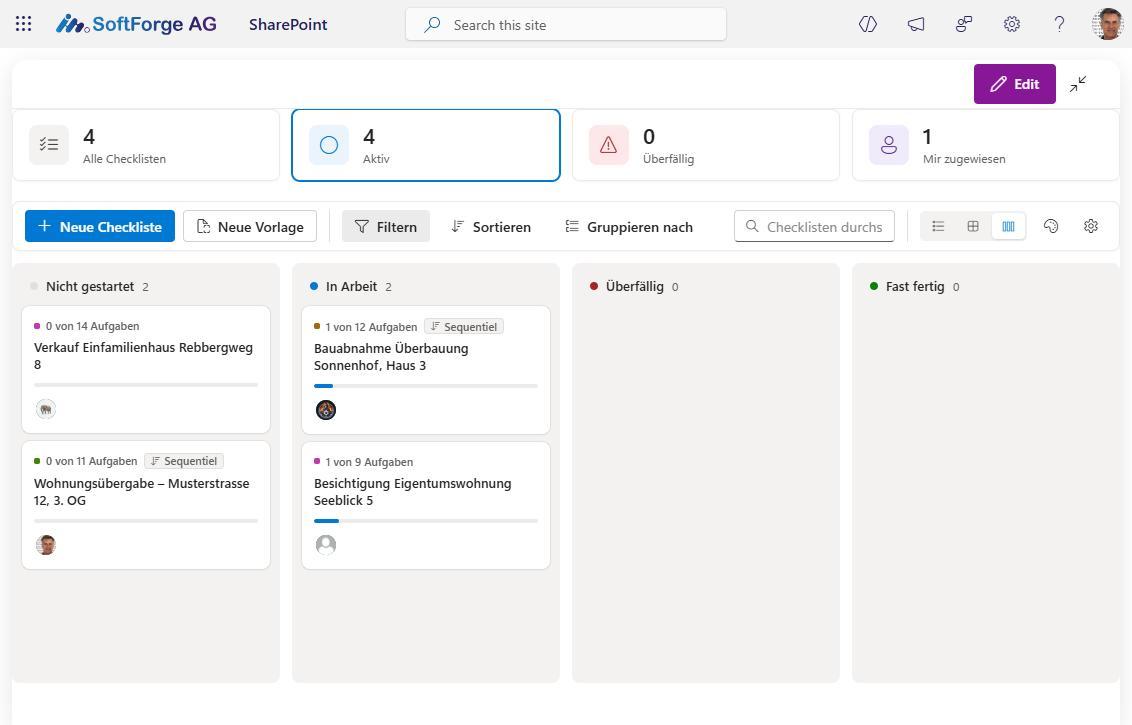
Board/Kanban view, automatically grouped by progress
Detail view with progress ring and sequential tasks
In the new detail view, you can see a checklist’s progress at a glance — including due dates and the people responsible. Tasks can be displayed as a table, cards or a Kanban board, and moved between statuses directly in the board via drag & drop. In sequential checklists, the next task is only unlocked once the previous one has been completed (or marked as “not required”) — which is why, in the example below, several tasks in the building acceptance for “Sonnenhof, Haus 3” are still locked with a padlock icon until the preceding steps have been completed.
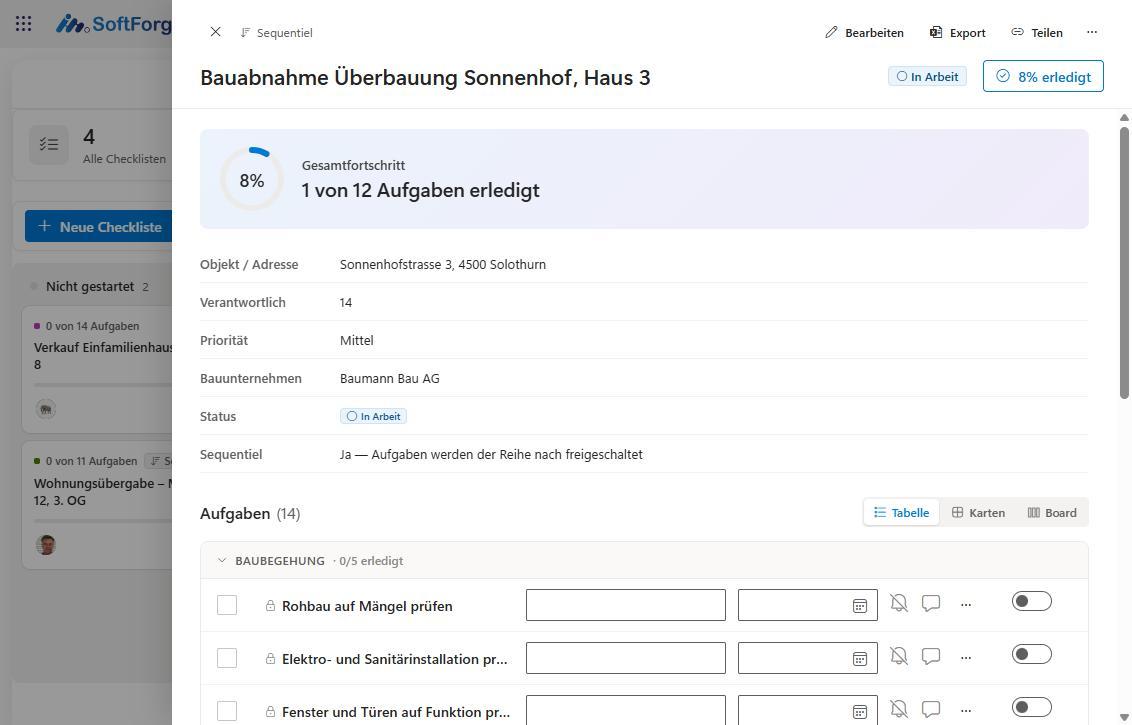
Detail view with progress ring and sequentially locked tasks
Template wizard with Smart Paste
New checklist templates are now created in a guided wizard with four steps: Details, Metadata, Tasks and Review. The highlight is the Smart Paste function in the “Tasks” step — paste an entire task list from Word, Excel or an email, and Checklists automatically recognises groups (lines ending in “:”, e.g. “Heating & plumbing:”) as well as optional tasks (marked with “(optional)”). In the example, a pasted list becomes the template “Annual building maintenance” with 14 tasks in several groups.
The metadata fields have also become more flexible: text, choice, date, person, yes/no, link or managed metadata (taxonomy) can be defined once and reused in any number of templates — for building maintenance, for instance, “Property / address”, “Facility manager” or “Maintenance contract”. In addition, you decide for each template which fields should appear on the cards in the overview.
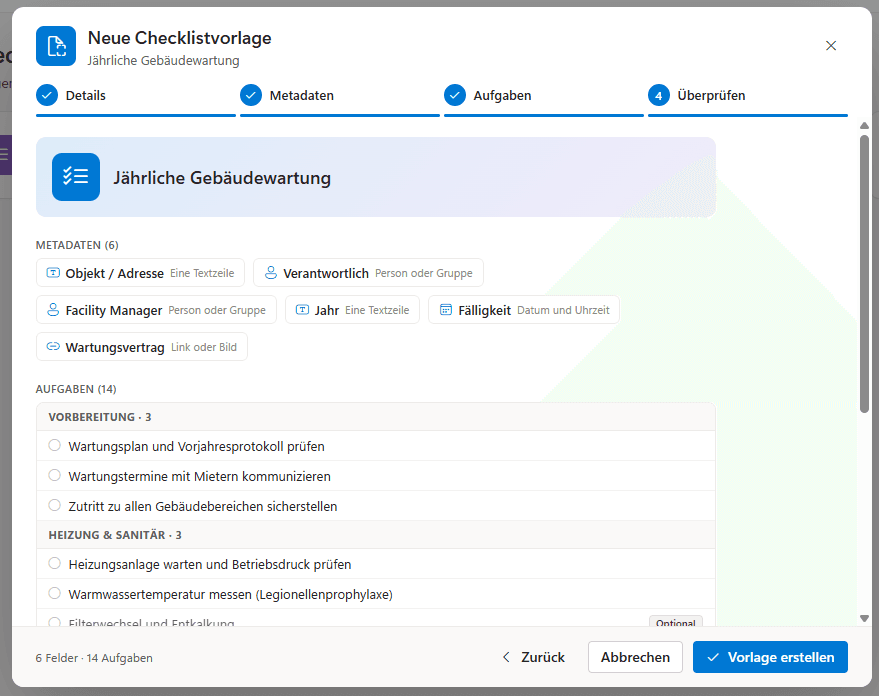
Template wizard: the final “Review” step, using “Annual building maintenance” as an example
Personal rather than uniform
Everyone can set up Checklists to suit their own taste: their own accent colour, preferred display density and the default view for the list and detail views. These settings only affect their own account.
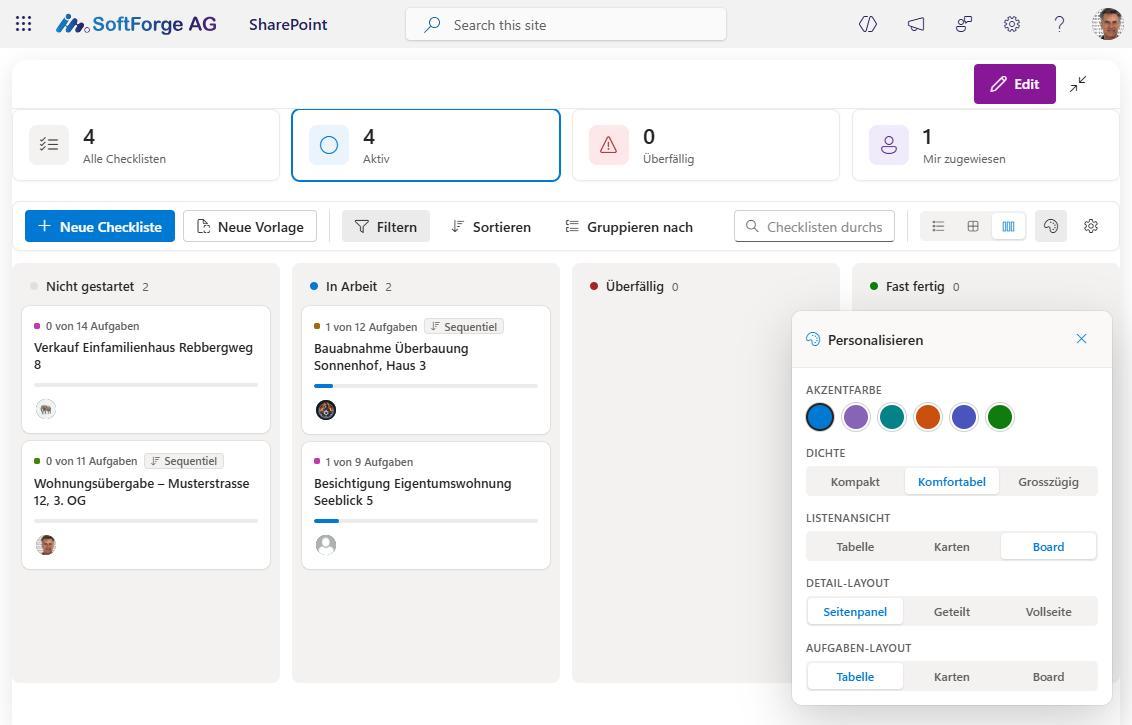
Personalisation: accent colour, density and preferred views
Tried and tested features remain
Despite the major redesign, Checklists remains what it always was: an SPFx app that runs entirely in your own Microsoft 365 tenant — on SharePoint Online or on-premises, integrated into Microsoft Teams. No data leaves your environment, and features such as XLSX export, comments and nudging colleagues are still included.
Would you like to see the new Checklists in action? Visit the product page and discover all the features in detail.
Do you have questions about the redesign or would you like to introduce Checklists in your company? Contact us using the form below — we will be happy to advise you.
Contact us
We look forward to learning about your requirements and presenting our solutions to you. Feel free to contact us to arrange a meeting.
- Address
- Spittel 5
3953 Leuk-Stadt - Phone
- +41 76 393 79 00
- info@softforge.ch