




Setting up Teams automatically with Power Automate
Configuring Teams automatically not only saves time, it also helps ensure Teams is used consistently across the company.
Not all employees are familiar with the best practices for using Teams. Automation helps you avoid chaos caused by unnecessary OneNote notebooks, plans or the rather unpopular Teams wiki. With Power Automate, you already have the tool you need to automate the creation and setup of Teams.
The result
For those who are only interested in the end result, I have summarised the solution in a short video:
Using a Power App integrated into Teams, employees can create standardised teams for customer projects:
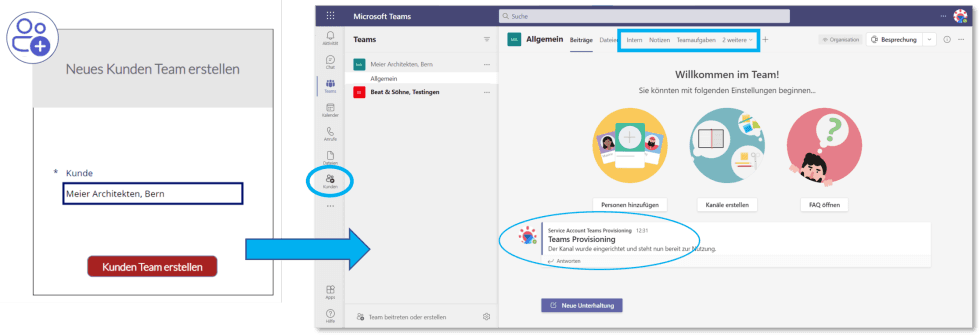
A Power Automate flow carries out the creation and setup and sends a notification as soon as the new workspace is ready and configured. The tabs are configured based on templates (folder structure, OneNote template, etc.):
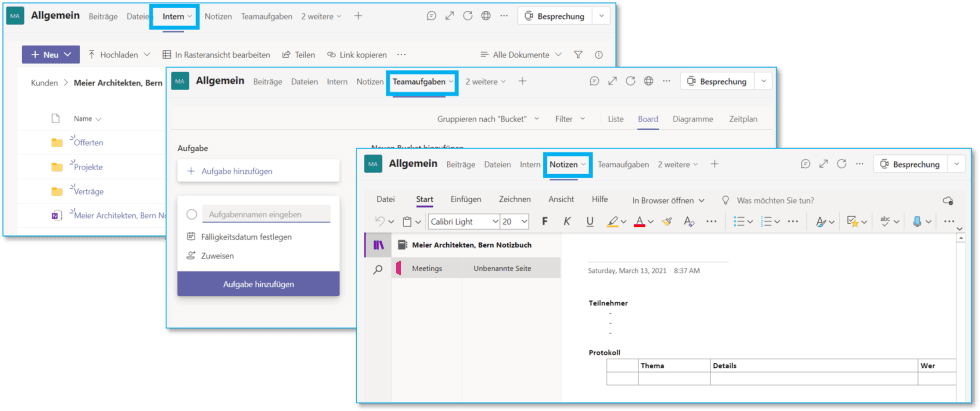
In this example, the flow performs the following actions:
- Create the team (including enforcing the naming convention)
- Create folders in the internal SharePoint storage
- Copy the folder structure and templates
- Remove the Wiki tab
- Add a tab to display the internal documents
- Add a OneNote notebook as a tab
- Create several plans in Planner and add them as tabs
- Grant user permissions
Implementing the solution
The Teams provisioning solution uses only standard components of the Microsoft 365 platform, with Power Automate Flow at its heart. The following sketch gives an overview of the solution architecture:
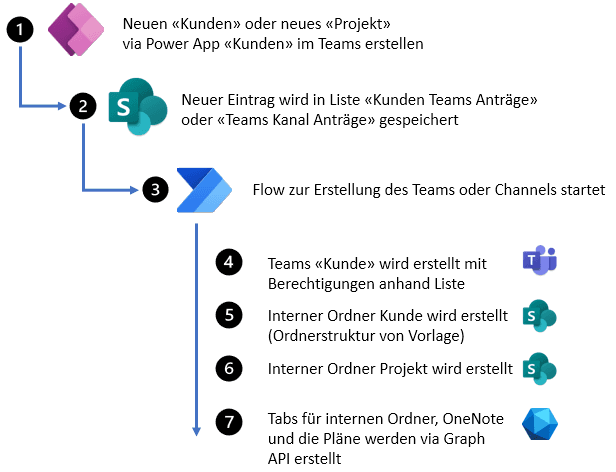
A major advantage of this approach is its flexibility and the scope for customisation. The flow can be adapted to further requirements at any time.
Licences and the SharePoint list
As so often with solutions that involve SharePoint, everything starts with a SharePoint list. In this solution, the SharePoint list merely serves to start the flow. One reason for this is Flow licensing. Because users do not start the flow directly but simply add an entry to a SharePoint list, only the flow creator needs a “Premium” licence (a Flow per-user plan costs around CHF 14.80 per month).
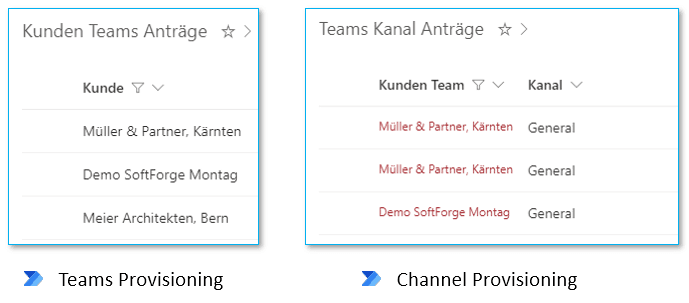
The list for customer team requests contains only the title field, which has been renamed “Customer”. In addition to the title field “Channel”, the Teams channel request list also has a lookup field to the customer teams list. The two lists trigger the “Teams Provisioning” and “Channel Provisioning” flows.
Power Automate flows
The flows are the core of the solution and automate the entire creation process. The main steps are shown below:
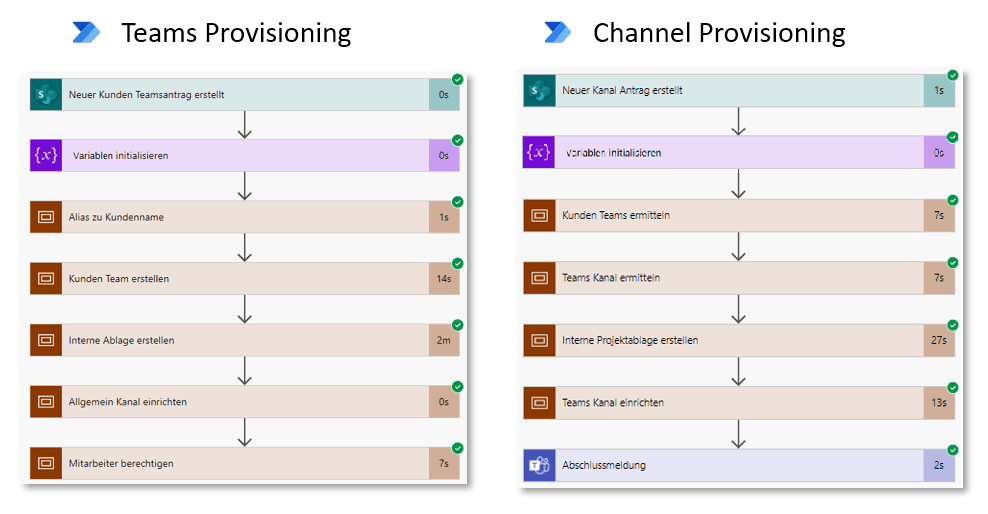
Not all the necessary actions are readily available in Power Automate. The flow therefore uses the Microsoft Graph API to carry out various configuration steps via web service calls.
Microsoft provides a very good step-by-step guide showing how to set up a custom connector to the Graph API: Create a Microsoft Graph JSON Batch Custom Connector for Power Automate - Microsoft Graph.
The Graph Batch API lets you bundle several actions into a single call. For example, creating 3 plans in Planner requires just one call:
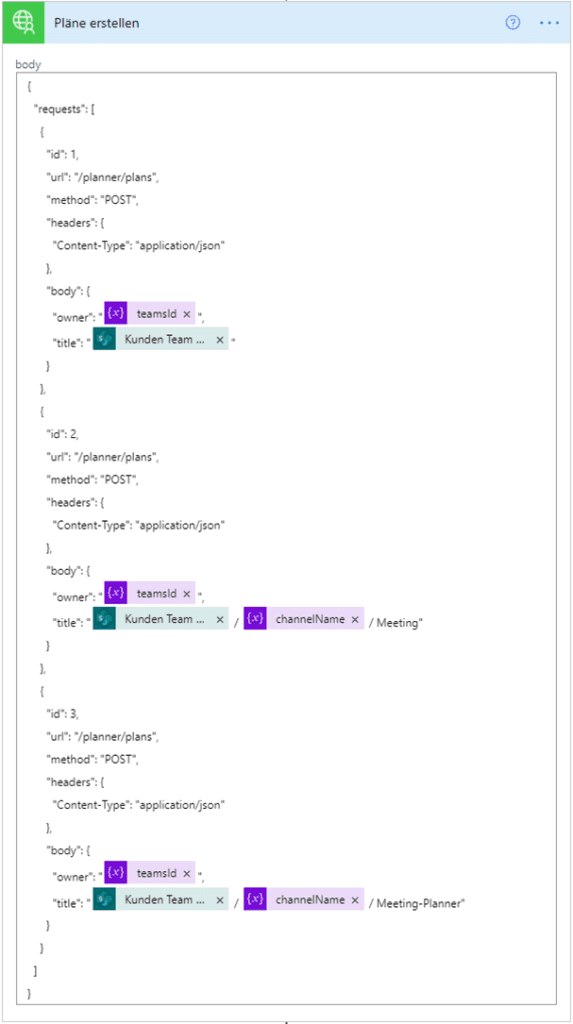
In the same way, you can set up all the tabs you need with a single call.
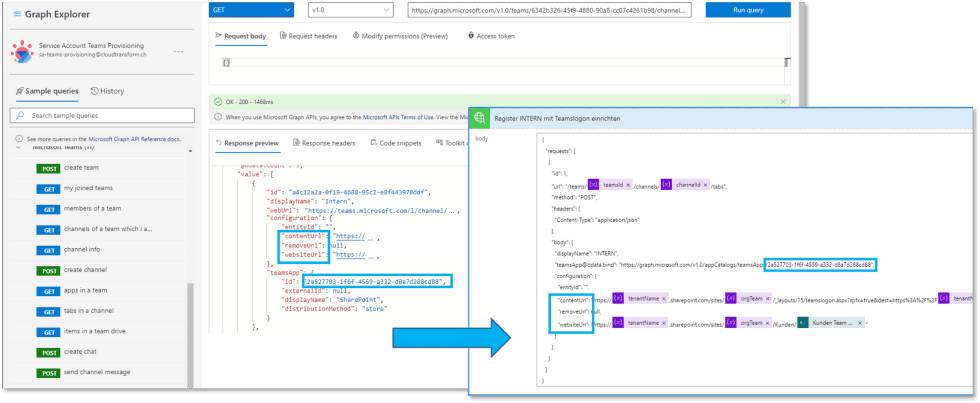
Using the API may seem a little daunting at first. But with Microsoft’s Graph Explorer (Graph Explorer – Microsoft Graph), these calls can be more or less put together with a few clicks.
For example, to find out how a particular type of tab is set up, you display the tabs of an existing, configured team in Graph Explorer (GET tabs in a channel):
Power App for Teams
An optional Power App can make creating a new team even easier. The Power App can be integrated into Teams and rolled out company-wide by creating a Teams app setup policy (Manage app setup policies in Microsoft Teams – Microsoft Teams).
The Power App lets you offer users additional guidance (tips for filling in the form, a help page, status messages, etc.) or, for example, validate their input.
The Power App is kept simple and directly uses the two SharePoint lists created earlier, which are embedded in the app as forms:
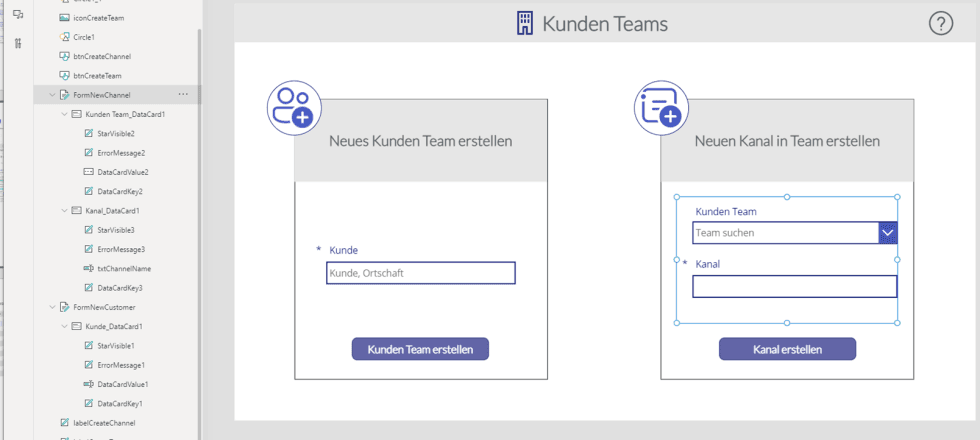
The form can be submitted via the button with a formula. Nothing more is needed to save an entry to the SharePoint list:
SubmitForm(FormNewCustomer);;Navigate(ScreenSuccessTeam;Cover)
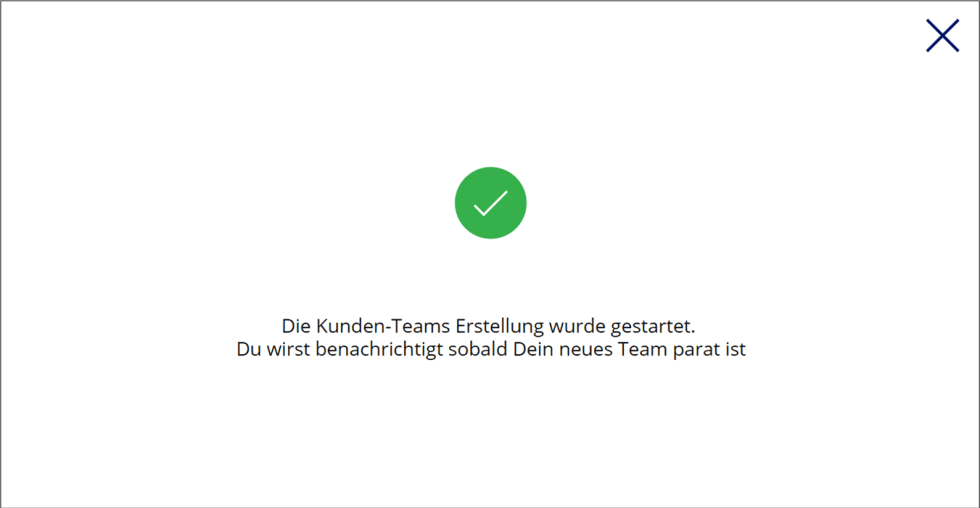
The second command opens the dialogue that informs the user that her team is now being set up:
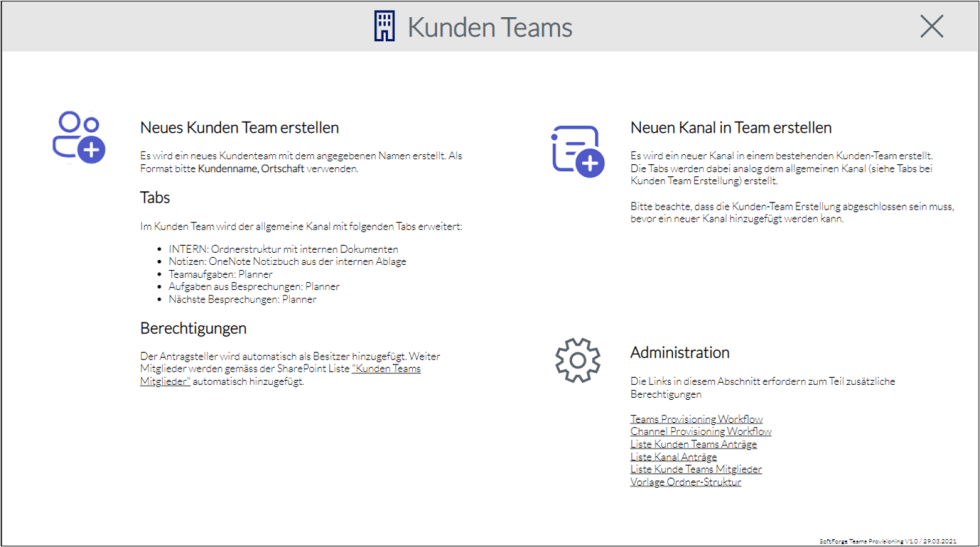
A help page displays additional tips and also conveniently bundles the links for administrators:
For example, the template folder structure is linked under Administration. The link points to the library that contains the folders and documents to be created as a template:
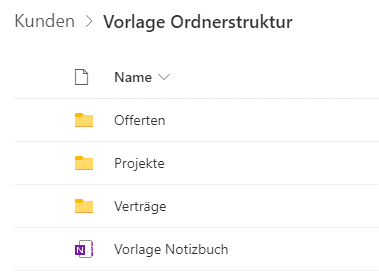
Authorised employees can adapt this template even without any knowledge of Power Automate Flow. The OneNote can also be preconfigured accordingly (e.g. sections, templates, etc.). When it is copied, the OneNote is renamed “Customer notebook”.
Conclusion
Automation with Flow not only takes over repetitive configuration work, it also contributes significantly to standardised use of Teams. The Teams actions provided directly by Flow are still limited. By calling APIs from Flow, however, the missing actions can be integrated into the process. Implementing the solution on the Power Apps low-code platform provides the flexibility needed to adapt processes to ever-changing requirements.